


Power BI Pipelines help teams manage, control, and automate the deployment of Power BI reports and datasets across different workspaces, such as development, test, and production. Setting up a pipeline ensures that changes are assessed and reviewed prior to releasing to a broad audience, following CI/CD (Continuous Integration and Continuous Delivery/Deployment) principles.
Pre-requisites
-
Access to the Power BI service with proper permissions (typically, at least Contributor or Admin access to relevant workspaces).
-
Power BI Premium or Premium Per User (PPU) capacity, as Pipelines need these licenses.
Environment Workspaces
Before configuring pipelines, decide if you need two or three workspaces in the deployment process. The most common setup includes three environments:
-
Development: Where initial changes and experimentation take place.
-
Test: Where content is validated and reviewed by test users.
-
Production: Where finalized content is formerly shared with end-users.
You should have separate Power BI workspaces for each environment.
Create and Organize Workspaces
-
Navigate to the Power BI Service.
-
Create three workspaces (e.g., "ProjectX - Dev", "ProjectX - Test", "ProjectX - Prod").
-
Assign appropriate security roles and permissions to each workspace. It is recommended to limit admin/edit access in the production environment, so changes are primarily made to use pipelines.
-
Publish initial versions of your datasets and reports to the Development workspace.
Creating a Power BI Pipeline
-
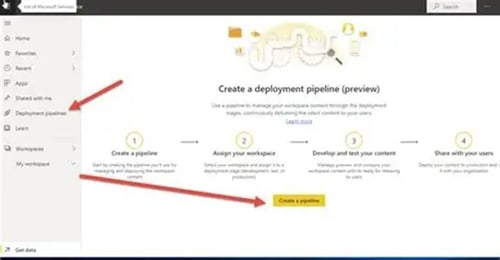
Go to the Power BI Service and select "Development Pipelines" from the left navigation panel.
-
Click "Create pipeline".
-
Give your pipeline a meaningful name (e.g., "Sales Reporting Pipeline").
-
Follow the prompts to set up the pipeline.
-
Assign an appropriate name for each pipeline stage (e.g., Development, Test, Production),
-
Assign each stage the correct workspace (note only premium workspaces that are not used in other pipelines will be available to choose from)
-
Deployment rules can also be configured to point to different data sources depending on which environment the item is in.
Deploy Content Across Environments
Once the pipeline is configured, deploy content from one stage to the next.
-
Go to the pipeline created and select the stage you want to deploy content to (if pushing from development to production, select production).
In the window below:
-
Choose the relevant environment.
-
Check the boxes of the items below to push to the selected environment.
-
Select Deploy

You will be prompted to add a note on the deployment; this is where all changes can be summarized and viewable in the deployment history log.
Deployment Rules
Moving a report from one workspace to another may require updating the data source the report pulls from (i.e. updating the data source from a development database to a production one). Deployment Pipelines help automate this task by setting up data source and parameter rules that automatically update the semantic model during deployment.
Example – Add a parameter rule:
-
First select the deployment rule icon in the destination stage

-
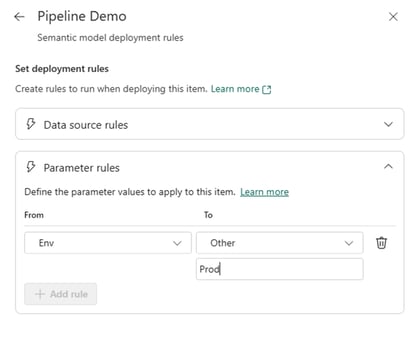
Then select the semantic model and expand the Parameter rules section. From there click Add rule

A dropdown should appear with any parameters loaded to that semantic model

Note: If no values are shown, make sure your semantic model is properly set up with parameters and they have a suitable data type assigned. Currently only Text and Decimal data types are supported.

-
Once the parameter is selected, the current value is displayed along with Other. Choose Other and type in the correct value to be used in the destination workspace. In this case, the Env value is updated from “Dev” to “Prod”

-
Hit Save when done and the new value will be displayed in the rule. Repeat as necessary for any remaining parameters.
Once set up, those parameters will be updated the next time the semantic model is deployed to that target workspace.
Deployment History
All Deployments can be viewed in the Deployment history log, which is available on the pipeline page.


Each row in the log contains:
-
A timestamp of when the deployment occurred,
-
A List of items included in the deployment
-
Whether the items included were new or modifications to the destination environment
-
Source/destination environments
-
Notes associated with the deployment
-
Status of deployment
Currently it is not possible to view the earlier version of the workspace item nor is it possible to revert the deployment to an earlier version.
Power BI Pipelines help teams create a more reliable, scalable, and controlled reporting environment. From deployment automation to governance and environment management, having the right setup in place can significantly reduce risk and improve collaboration.
Need help implementing or optimizing Power BI Pipelines? Our team at Aerie can help streamline your Power BI deployment strategy and broader analytics environment. Talk to one of our experts today!


