


Variables are one of, if not the first concept that is taught to a new programmer when they first set their hands on a keyboard.
The idea is simple and infinitely useful – put a value in a named box, now you can reference and even update that value elsewhere in your program. Individuals with minimal technical background can still grasp the idea of a variable and so it’s not uncommon for a citizen developer to rely heavily on the “Variables” connector when they start using Power Automate. Afterall, they need to put those values somewhere… right?
Yes and no. Part of the beauty of Power Automate is that the response of any action can be referenced later in the flow by using the “outputs()” function. This means if you make an API call to, say, SharePoint and want to reference a value from the response in a later action, there is no need to store that value in a variable, just reference the outputs of the SharePoint action. Now, what if you need to store a value that isn’t being returned by another action? This could be a hard-coded value, or a value dependent on the values of multiple outputs, or maybe you just want an easier way to reference a value than drilling into the response of an API call. At this point a variable would seem like a logical choice but in my experience, using variables in Power Automate to this end will lead to slow, hard-to-read code that will be more trouble than it’s worth.
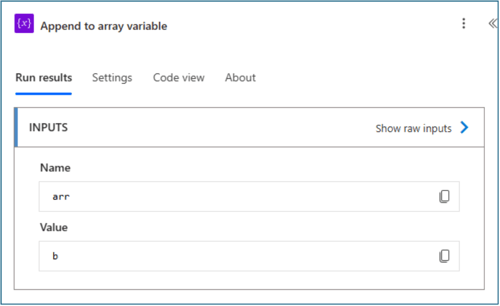
Consider a scenario where you are trying to debug a flow and you see that an action is receiving the value of a variable as one of its inputs. You need to determine the origin of this value and what actions have written to this variable. Since the name of a “Variable” action is independent of the actual variable being initialized/modified, you’ll need to inspect every “Variable” action to check to see if the action is setting or modifying your variable of interest. This also means expanding every condition, scope, loop, and switch to verify if there is a “Variable” action nested within. If this is not enough evidence to dissuade from using variables, I urge you to consider that the outputs of actions such as “Append to [string/array] variable” don’t include the resulting value of the variable. This means that even if you find one of these actions that is acting on your variable of interest, you won’t know the value of that variable until you can find all other contributing actions and then do the mental math to figure out the result of each action in sequence. No bueno.
Now, let me propose an elegant solution: stop using variables. There is a much simpler set of actions that paired with smartly placed Power Automate formulas will make your code faster, prettier, and easier to support. That set of actions is Data Operations. Data Operations is an out-of-the-box connector and will quickly become a favorite upon adoption. The action under this connector which will become your widely used substitute for variables is “Compose”.
Think of this action as a constant as opposed to a variable – a value is placed in the box and the values stays there unchanged until the expiration of the program. Subsequent actions can read the value but not update it. So why is this a better alternative? Well, for one, the value doesn’t have a name which somewhat counter-intuitively is an improvement over variables.
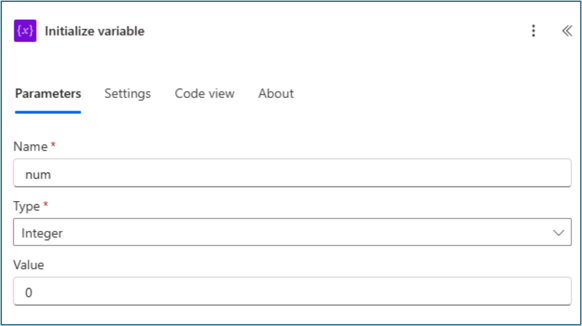
Every time you initialize a variable you need to give it a name. Say you want to initialize an integer variable. You would put an “Initialize variable” action down. Pass in the name (let’s call it “num”), the data type (integer), and the value of the variable. Right now, the action is still called “Initialize variable” even though the name of the variable is called “num”. This puts the onus on the developer to rename the action with a more descriptive name and leads us back to the issue we talked about before where while debugging you must check every “Variable” action to see if it is acting on your variable of interest.
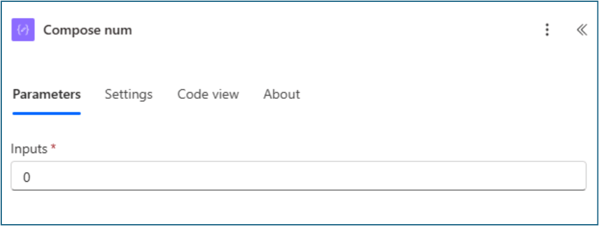
If instead of using a variable to store this integer, we used “Compose”, this would be the result: You put a compose action down, you put the integer value in the inputs, and you rename the action “Compose num”. Now when you reference the integer value later in your flow you reference it with “outputs(‘compose_num’)” and it is clear what action is responsible for the value that is being referenced – the action whose name is being passed to the outputs function. In contrast, if we were going to reference the value using the variables paradigm, we would use “variables(‘num’)” which has no indication of what action is responsible for the value.
Another benefit of using “Compose” over variables is you can always see what is being output by the “Compose” action. Appending to an array or string variable obscures the resulting value, but “Compose” will output exactly the result of expression which is placed in the inputs.
This brings us to the million-dollar question, which is “If the outputs of a compose are immutable, how does one change the value of your makeshift variable?”. This is where Power Automat formulas come in. Instead of putting down an “Increment variable” action to add 1 to “num”, we will instead put down another “Compose” and place in the inputs a formula such as this: "add(1, outputs(‘compose_num’)". We then rename the “Compose” to “Compose increment num by 1” and later in our flow, when we need to reference the incremented value, we use “outputs(‘compose_increment_num_by_1’)".
What if the value of “num” should depend on a number outside of our control? This could be the case if you need to calculate how many items are in an array. Say you want to store the number of records returned by a SharePoint “Get items” action. A common approach could be to pass the array of an “Apply to each” loop and increment a variable every time the loop iterates.
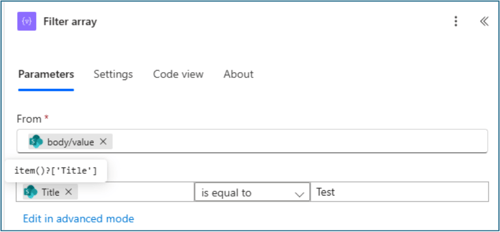
A much more efficient way is to use a “Compose” with a "length(outputs(‘get_items’)" function. What if you only want to count the number of items which satisfy a specific condition? Instead of putting the “Increment variable” action in a condition within the loop, use “Filter array”, another action under the “Data operation” connector, before composing the length of the array.
Lastly, I’ll describe a common scenario that can be made much more efficient by rejecting the variables paradigm. Consider the need to concatenate an arbitrary number of strings together which originate from an array. An example of this could be sending an email to users who are stored as objects within an array. To do this you’ll need to gather their email addresses and combine them into a single string separated by semicolons. A citizen developer could be expected to use a loop and an “Append to string variable” action but a simpler, faster, and easier-to-support way is to utilize the “Data operation” connector.
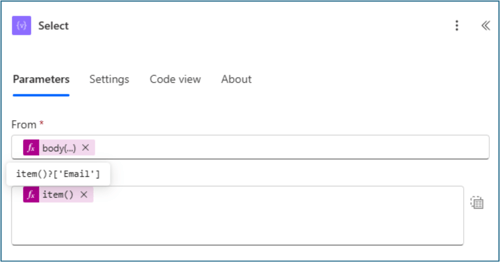
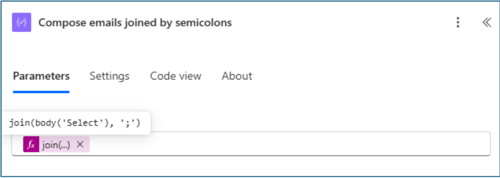
First pass the array to the “Select” action. In this action you can specify which property from each array item you’d like to select by using "item()[‘property_name’]". For this scenario we will select the email from an array of user objects returned by a SharePoint API call. The “Select” will return an array of the selected values. From this array we can use a “Compose” with a “join()” function to concatenate the values into a single string separated by semicolons. And voila, we have accomplished our goal in two actions without the need for a variable or loop.
I hope that this has given you cause to rethink the use of variables in your Power Automate flows. In all honesty I still use variables, albeit sparingly, to accomplish things like evaluating the exit conditions of a “Do until” loop or collecting the outputs of multiple parallel processes but these are the exception to the rule. In my experience, most flows do not require the use of variables, and it is my belief that your code will be more efficient and easier to support without them.
Share

